Key takeaways
- Searching for the best docking station for hard drives? Compare four SATA docks for cloning, backups, and data recovery, with USB-C and USB 3.0 options.
Finding the best docking station for hard drives comes down to one question: how do you plan to use the bare SATA drives sitting in your drawer? A good dock turns a loose 2.5-inch or 3.5-inch hard drive or SSD into a plug-and-play external drive, no enclosure assembly or screwdriver required. The quick answer is that the Sabrent EC-HD2B is the strongest all-round pick for most people, thanks to its two bays, offline cloning, and wide drive support, while the single-bay Sabrent EC-DFLT is the simplest choice if you only need to read one drive at a time. This guide compares four docking stations, explains what to look for, and flags the limits of each pick so you can choose with confidence.

Quick Picks
Our Short List of 3
All 4 Picks at a Glance
| Product | Specs | Action |
|---|---|---|
| Sabrent EC-HD2B: Best Overall Dual-Bay Dock |
| Check price on Amazon |
| Sabrent EC-CH2B: Best USB-C Dual-Bay Dock |
| Check price on Amazon |
 Sabrent EC-DFLT: Best Single-Bay Dock |
| Check price on Amazon |
 WAVLINK WL-ST334UA: Best Budget Dual-Bay Dock |
| Check price on Amazon |
How to Choose
Number of Bays
The bay count decides what a dock can do in a single session. A single-bay dock reads one drive at a time, which is enough for pulling files off an old laptop drive or checking a disk you just removed from a desktop. A dual-bay dock lets you copy files directly from one drive to another through your computer, and it is the minimum for offline cloning. Four-bay docks exist for people who manage a small library of backup drives, but they share one host connection, so each added bay brings convenience rather than speed. Match the bay count to how many drives you handle at once, not to how many drives you own in total.
Drive Compatibility
Nearly every dock in this category accepts 2.5-inch and 3.5-inch SATA hard drives and SATA SSDs. That covers the drives found in most desktops and laptops from the past fifteen years. What these docks do not accept matters just as much: they do not take M.2 NVMe drives, and most do not take older IDE or PATA drives. If your drive came out of a very old machine, check its connector before ordering. A SATA drive has a distinctive L-shaped data and power connector pair, while an IDE drive uses a wide ribbon connector. Buying the wrong dock for an IDE drive is one of the most common mistakes in this category.
Host Connection and Transfer Speed
Most hard drive docks connect over USB 3.0 at up to 5 Gbps, which is fast enough for a mechanical hard drive to run at its full speed. A spinning hard drive rarely sustains more than 200 MB per second, so a 5 Gbps link is not the bottleneck for HDD work. The connection type still matters for convenience: USB-C docks plug straight into modern laptops, while USB-B docks need the older cable that usually ships in the box. A small number of docks include a 10 Gbps link, which only pays off with fast SATA SSDs and only when the rest of your setup can keep up. For hard drive use, prioritize a stable connection and a good power supply over a headline speed figure.
Offline Cloning
Offline cloning copies one drive to another without a computer, using a button on the dock itself. It is the standout feature for anyone migrating to a larger drive or making a full backup copy. Two rules apply to every cloner. First, the target drive must be the same size as the source or larger. Second, cloning a large drive takes time: a dock rated at 60 MB per second needs several hours to copy a multi-terabyte drive, while faster cloners finish the same job much sooner. Check the rated clone speed in the specifications and plan around it. Also note that some docks advertise cloning in the listing title while the maker page says nothing about it, so confirm the feature in the official specifications.
Power Supply
A 3.5-inch desktop hard drive cannot run on USB power alone, so every dock for full-size drives ships with an external power adapter. This is normal and expected. What varies is the quality of that adapter and whether the dock has a physical power switch, which makes it easy to cut power before swapping a drive. Some docks also include a cooling fan, which helps during long cloning sessions or when a dock sits on a desk all day. If you plan to run a dock for hours at a time, a model with a fan and a solid adapter is worth favoring.
Capacity Support
Manufacturers state a maximum supported drive capacity, and that figure has grown over the years as larger drives reached the market. Older listings sometimes still show an earlier figure, so the same model can appear with two different capacity numbers depending on where you look. In practice, most current docks handle the largest consumer drives available, but if you own drives above 10TB, confirm the stated support for your exact model and firmware before relying on it. A dock that cannot recognize a very large drive will usually show nothing at all rather than showing a smaller capacity.
The Best Best Docking Station for Hard Drives Reviewed
Sabrent EC-HD2B: Best Overall Dual-Bay Dock
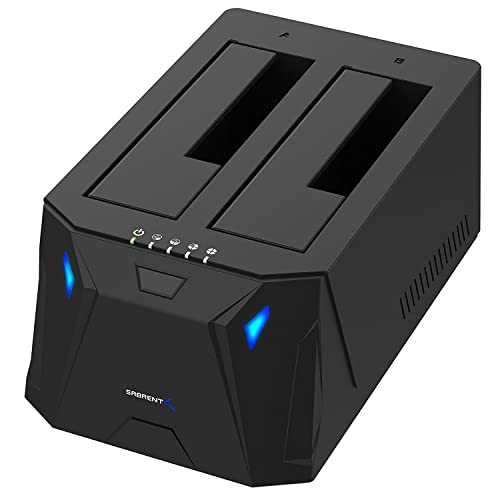
The Sabrent EC-HD2B is the default recommendation for a reason. It holds two 2.5-inch or 3.5-inch SATA hard drives or SSDs at the same time, connects over USB 3.0 at up to 5 Gbps with UASP support, and includes an offline cloning function rated at up to 60 MB per second. Both bays are visible to the host computer simultaneously, so you can move files between two drives without shuffling them in and out. The dock is trayless and tool-free: you slide a bare drive into a slot and it connects, and a power switch and LED indicators round out a straightforward design.
One point to flag before buying: the capacity figure for this model is inconsistent across sources. The current listing title states support above 20TB, while older listing copy states up to 10TB per bay. The maker page now rates the dock for larger drives, and that is the figure to trust, but buyers with very large drives should confirm compatibility with Sabrent support if they want certainty. The clone speed is also modest, so copying a multi-terabyte drive will take several hours. Neither point changes the verdict for typical use: this is the most versatile dock here, and it suits backups, drive migration, and recovering files from old disks.
Sabrent EC-CH2B: Best USB-C Dual-Bay Dock
The Sabrent EC-CH2B is the USB-C twin of the EC-HD2B, and it is the pick for anyone whose laptop has moved on from full-size USB-A ports. It has the same two-bay layout for 2.5-inch and 3.5-inch SATA drives, the same offline cloning function, and the same 5 Gbps transfer ceiling, with a USB-C cable in the box. Simultaneous read and write across both bays works the same way, and the dock is tool-free and hot-swappable. If your computer has USB-C ports and you would rather not carry an adapter, this is the more convenient version of the best overall pick.
The trade-off is that the two Sabrent dual-bay docks are otherwise near-identical, so there is little reason to own both. Choose based on the ports on your computer: USB-C for newer laptops, the EC-HD2B for desktops and older machines with spare USB-A ports. The same caveats apply here as to its sibling, including the modest clone speed and the need to check capacity support for the largest drives. For a modern laptop owner who clones drives or rotates backup disks, the EC-CH2B is the natural fit.
Sabrent EC-DFLT: Best Single-Bay Dock
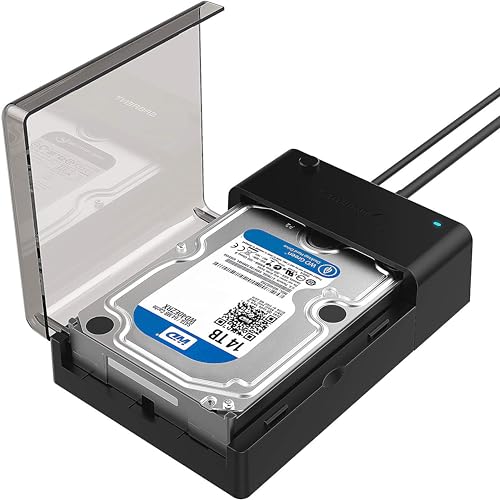
The Sabrent EC-DFLT takes a different approach: one bay, a lay-flat design, and nothing extra. It accepts a single 2.5-inch or 3.5-inch SATA hard drive or SSD over USB 3.0 with UASP support, and it includes a hardware power switch. There is no cloning function, which is the main thing it gives up against the dual-bay models. What it gains is simplicity and a smaller footprint. It is the cheapest way to read the contents of a drive you just pulled from a machine, confirm what is on it, and move on.
This dock suits occasional use better than heavy rotation. If you shuck one or two drives a year, check a disk before disposal, or need a quick way to read a drive from a retired laptop, a single bay is all you need. It is also a good second dock to keep beside a main workstation for spot checks. Do not buy it expecting to clone drives or to copy files between two disks directly, because that needs a second bay. For one-drive-at-a-time work, though, its straightforward design is exactly the point.
WAVLINK WL-ST334UA: Best Budget Dual-Bay Dock
The WAVLINK WL-ST334UA is the flexible alternative in this lineup. It is a dual-bay dock for 2.5-inch and 3.5-inch SATA drives with offline cloning, and it ships with both USB 3.0 and USB-C connectivity, so it adapts to older desktops and newer laptops without an adapter swap. The top-loading bays are tool-free, the clone function runs without a computer, and the dock supports UASP for faster transfers. For buyers who want two bays and a clone button at a lower outlay than the Sabrent dual-bay models, this is the option to look at first.
Two flags apply to this pick. First, the listing carries conflicting capacity figures: the title states 16TB per bay while the specification table in the listing shows a smaller drive figure, so treat the headline number with caution and verify against the maker page for your drive size. Second, this is an older listing, first available in 2015, and the available product page copy is a cached copy rather than a fresh one. Neither flag means the dock is a poor choice, but both are reasons to confirm the current listing details before ordering. If the dual connection types matter to you, the flexibility here is genuine.
What to Check Before You Buy
Start by confirming your drives are SATA. Pull the drive out, look at the connector, and match it to the dock specification. A SATA drive has a small L-shaped connector; anything else needs a different adapter. Next, count how many drives you will use at once and whether you need cloning, because those two answers decide between one bay and two. Then check your computer ports and pick the cable type that fits without adapters. Read the stated capacity support if your drives are larger than 10TB, and note the clone speed if you plan to duplicate large drives, since a slow cloner can turn a migration into an overnight job. Finally, remember that a dock is not a backup strategy by itself. A dock makes it easy to copy data onto a second drive, but the copy only protects you once it exists and is stored somewhere safe. Pair the dock with a backup routine: a regular schedule, a second copy, and a check that the backup actually opens.
FAQ
Do hard drive docking stations work with SSDs?
Yes. The docks in this guide accept 2.5-inch SATA SSDs as well as 3.5-inch and 2.5-inch SATA hard drives. The same slot takes either type, with no adapter needed. Note that M.2 NVMe SSDs use a different connector and do not fit these docks; they need a dedicated M.2 enclosure or adapter.
Can I clone a drive to a smaller drive?
No. Offline cloning requires the target drive to be the same size as the source drive or larger. If the target is smaller, the clone will not start. If you are migrating to a smaller SSD, clone through software on your computer instead, where you can shrink partitions first, or choose a target drive with at least as much capacity as the source.
Does a docking station need external power?
Yes, for 3.5-inch drives. A desktop hard drive needs more power than a USB port supplies, so docks for full-size drives include an external power adapter. Smaller 2.5-inch drives can sometimes run on USB power alone, but the docks here are powered designs and should be used with their adapter connected. Always connect the power adapter before inserting a 3.5-inch drive.
Will a docking station work with my operating system?
The docks in this guide are plug-and-play on Windows and macOS, with no driver installation required. Linux support varies by model and by the USB bridge chip inside the dock, so Linux users should confirm compatibility for their exact model. Drives formatted for one operating system may still need reformatting before another system can write to them, even though the dock itself will detect the drive.
Is a docking station better than an external hard drive enclosure?
It depends on how you work. A dock is better for swapping drives in and out, cloning, and reading bare drives quickly, because there is no assembly and no screws. An enclosure is better for a drive that will stay connected for months, since it protects the drive and looks tidier on a desk. Many people use both: a dock for migration and recovery work, and enclosures for drives that live permanently on the desk.
Bottom Line
The best docking station for hard drives for most people is the Sabrent EC-HD2B, a dual-bay dock with offline cloning that handles the common jobs: backups, migration, and reading old drives. If your laptop only has USB-C ports, the Sabrent EC-CH2B gives you the same capability with a modern connector. The Sabrent EC-DFLT is the right choice when you only need to read one drive at a time and want the simplest tool for the job, while the WAVLINK WL-ST334UA is worth a look if you want dual bays, cloning, and both USB 3.0 and USB-C in one dock. Whichever you choose, confirm your drives are SATA, check the capacity support for large drives, and remember that the dock is only as useful as the backup routine it supports.
Disclosure: As an Amazon Associate, we may earn from qualifying purchases.